


Recently needed to get an ASAv deployed in AWS for a customer. The documentation was sparse on Cisco and AWS’ site, so I created a quick guide here. I did reference the video HERE.
First is getting your VPC setup (if you dont already have one), by going through the wizard.

Then you need to create the subnets for each interface on the ASAv (Management, Inside, and Outside). If you plan on using the ASAv to host externally accessible servers, you would also want a DMZ subnet, so 4 total.

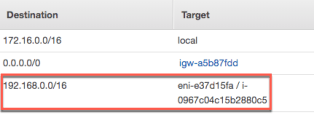
After assigning the internet gateway so that the subnets have access to the internet, we will want to make sure they are connected to a route table. (This screenshot has the route for my on-prem network that will be added later once the ASAv AMI is deployed)
Next we will want to associate the subnets with a Security Group. We are going to allow all traffic, since the ASAv will be what we use to limit inbound traffic.

After we have the subnets, internet gateway, route table and security group, we are able to create our Network Interfaces in the EC2 Management Console. The management interface can be created live when you deploy the AMI, but you can also use a pre-configured interface, which is what I chose to do.

From there we will go ahead and deploy the AMI from the Amazon Marketplace. Just search for ASA and either choose the image that includes the license at a per-hour fee, or the BYOL (which is what I chose).

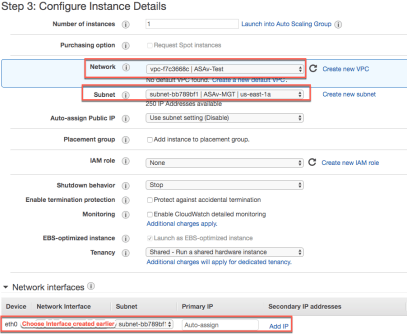
On the first part of the instance configuration, we will choose the VPC, subnet, and then the interface that we created.
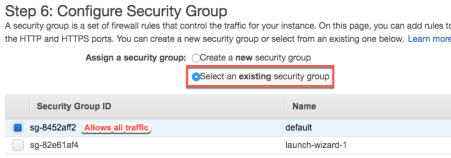
We can skip through the drive setup and the tags (unless those are things you want to add) and choose the security group we configured earlier when prompted.
It will then prompt you for the credential key pairs to download and log into your instance via SSH. Either use one already created, or let it create a new one for you and make sure you SAVE THEM as you cannot do it later.
Now your instance will start to deploy. While it is doing that, you can attach the inside and outside interfaces to the instance (EC2 Dashboard->Network and Security->Network Interfaces).

All three (or 4 with a DMZ) Network Interfaces will need to have Source/Destination Check disabled on them.


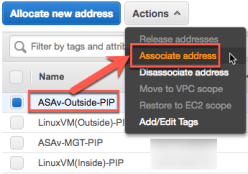
You will also want to make sure that your outside interface has a public IP address as well, since you dont want to use the management interface for traffic (EC2 Dashboard->Network and Security->Elastic IPs). If you havent created them already, just click the allocate new address button and it will create one quickly.
Once everything is connected, you should be able to connect to the management interface’s public IP address with the credential key you downloaded and the user name “admin”.
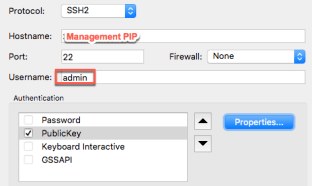
After you connect, you will want to enter enable mode, and the default password is Ctrl+Space Bar, then hit Enter. You will want to change that immediately. As well as either changing the admin credentials, or adding your own users. If you need to limit SSH access to specific networks or IP addresses, you can do that as well.
I am just going to cover some specific ASAv configurations that are not just typical to any other ASA, as their are much better guides for that elsewhere.
- The management interface is DHCP by default, so I would recommend either using the AMI’s 0-day config to set it manually (more on that HERE from Cisco) or creating the management subnet with a smaller network size so it will just have the IP address that you want from the smaller DHCP scope
- You will have to name the GigabitEthernet0/0 and GigabitEthernet0/1 interfaces and set their security levels, as well as set their IP addresses manually (even though they will pull addresses from DHCP in their respective subnets). You will want to set them to whatever address they pulled.
- You can set static IP addresses in the Network Interfaces when you create them in AWS, and then you will just use that IP address, but will still need to set it again in the ASAv
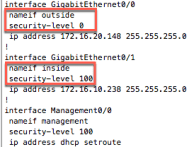
- You can set static IP addresses in the Network Interfaces when you create them in AWS, and then you will just use that IP address, but will still need to set it again in the ASAv
- You will need to set a static route on the outside interface for each subnet that you want to communicate on a site to site VPN and also the peer IP address for every site you are going to connect to, where the next hop is the outside subnets gateway IP address (always the first address in the subnet)

- You will need to add each VPN network to the VPC Route Table (VPC Dashboard->Route Tables) pointing to the interface ID of the ASAv inside interface
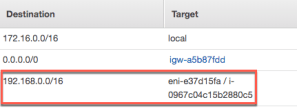
- If you have VMs in subnets that are not the inside or DMZ subnets on the ASAv, then you need to also add a static route on the ASAv on the inside interface to pointing to the management interface’s default gateway.
After that, you should be able to connect your site to site VPN and be ready to go!
 lucidlab.net
hello.Thanks for the neat documentation.we deployed asav in aws recently and started using it as remote access vpn.There are limitations on instance types we can use for asav in aws.We choose c4.xlarge which is the largest available instance type.But only with 100 users connected to asav,we are seeing cpu go up to 80 %.Is there any best way to utilize asav in aws ?
LikeLike
I think that it would depend on how much other traffic is going over the ASAv. Are you guys using it to actually NAT traffic, or just a VPN concentrator? How many servers are behind it and what is the bulk of the traffic (web, SQL, RDP)? It might be a case of splitting your remote access to another ASAv and using a smaller instance.
LikeLike